01
Real-time search
Fresh answers when the world changes.
Turn on search when you need current information. Arbiter finds useful sources and brings them into your local chat.
- Current information
- Useful sources
- Search only when needed
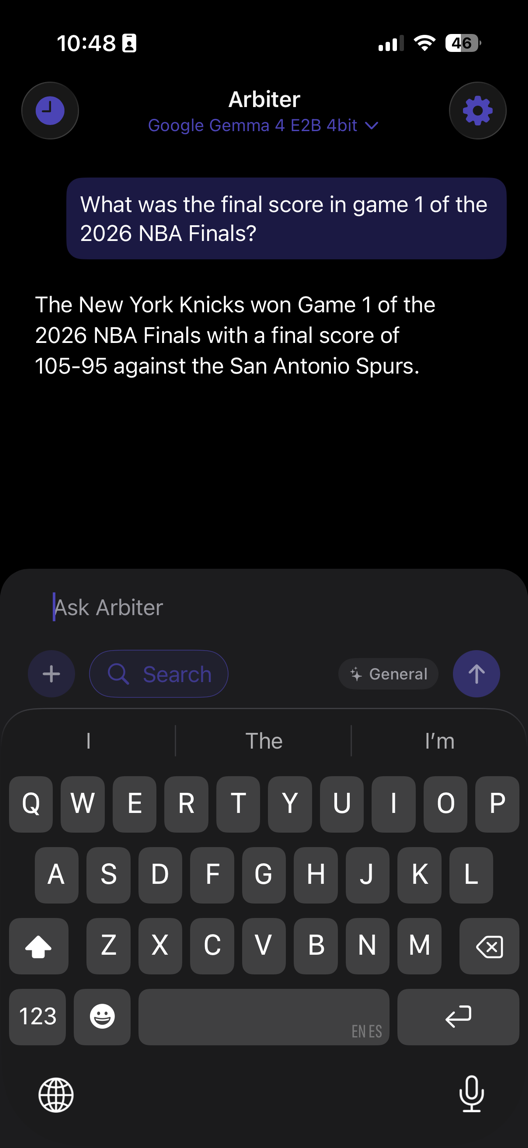
Chat with open models on the hardware you already own. Stay offline, choose the model that fits, and keep every conversation yours.
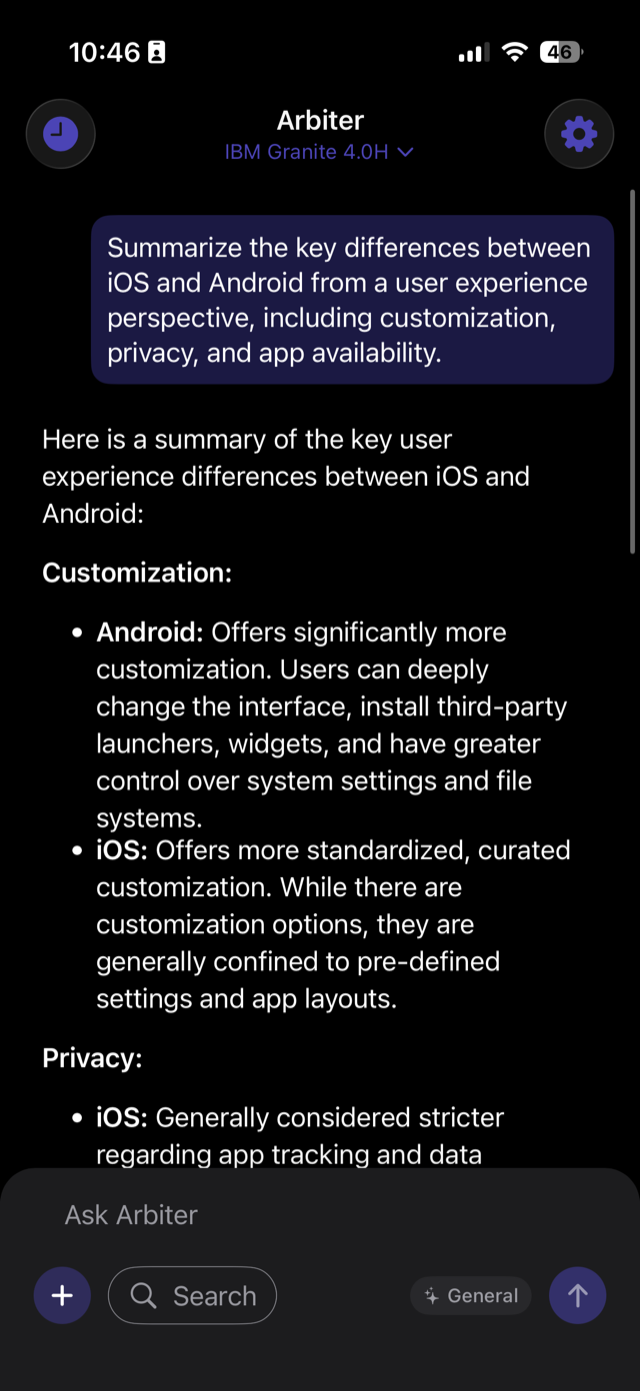
Search, work with files, use images, and reach larger Mac models without giving up control.
Real-time search
Turn on search when you need current information. Arbiter finds useful sources and brings them into your local chat.
Upload documents
Add a PDF or text file, then ask for a summary, key details, or a simpler explanation.

Chat with images
Send a photo or screenshot to a vision model and ask what it sees, all in the same private chat.

Export conversations
Export a conversation for backup, then import it later on another device.
More power from your Mac
Connect your iPhone to Arbiter on your Mac and chat with larger MLX models over your own Wi-Fi.
Siri integration
Use Siri Shortcuts to send a question hands-free and continue the conversation in Arbiter.
“Ask Arbiter to explain this in simple terms.”
Listening securelyRoles & translation
Switch roles for translation, studying, writing, and more. Adjust the tone and detail to fit you.
Privacy should feel effortless.
SpanishLa privacidad debería ser sencilla.Use Apple’s on-device model with no additional download on eligible devices.
Connect to Arbiter on Mac, LM Studio, Ollama, or another compatible local server.
Keep chatting without Wi-Fi once your model is downloaded.
Compare, filter, download, and manage 44 models across open model families.
Community results make it easier to choose the right model for your device.
Every prompt you send to a cloud AI is processed on someone else's servers, logged, stored, and potentially used to train future models.
Cloud AI stops the moment your connection drops. On a flight, in a dead zone, or on a slow network, you are left without assistance.
Premium AI is locked behind monthly subscriptions and per-query fees. Your usage is tracked, throttled, and billed at every turn.
Yes. Everything is processed and stored on your device. Your chats and files never leave your phone or Mac unless you explicitly choose to share them. This applies across iPhone and Mac, whether running models locally or serving them on your network. Your data never touches external servers.
No. Once a model is installed, the app works entirely offline. You can use it on airplanes, in remote areas, or without Wi-Fi, while still getting fast and responsive answers.
Arbiter uses optimized open-source models that run locally on your device’s Apple Silicon processor. Both GGUF and MLX model formats are supported on iPhone and Mac. Models are pre-downloaded and don’t require server access, so your requests are processed instantly without sending anything to the cloud.
Arbiter runs on iPhones and iPads with iOS 16 or later, with best performance on devices with A14 Bionic or newer and at least 6 GB of RAM. Arbiter for macOS is available on Apple Silicon Macs (M1 or later) and can run larger MLX models.
Arbiter offers 44 models across families including Gemma, Llama, DeepSeek, Qwen, Mistral, Phi, and Granite. The catalog includes 24 GGUF and 20 MLX models, all usable on both iPhone and Mac, plus 9 vision-capable models and 10 reasoning models. On supported devices, Apple’s Foundation Model is also available.
Starting with iOS 26 and macOS 26, Arbiter integrates Apple’s on-device Foundation Models through Apple Intelligence. These models run natively on your device at no additional cost, providing another option alongside open-source models with zero downloads required.
Yes. The macOS app includes a Serve Model feature that creates an OpenAI-compatible local API server. Your iPhone can connect to your Mac over Wi-Fi using automatic Bonjour discovery, letting you run larger models on your Mac while chatting from your phone.
Yes. Beyond Arbiter’s own Mac server, you can connect your iPhone to any local machine running LM Studio, Ollama, or any OpenAI-compatible API server on your local network. Configure the host and port and you’re connected.